Installer “damaged” on macOS 27? How I got Sonoma onto my Apple silicon Mac anyway
Updated
I needed macOS Sonoma on a real Mac to test my app, and macOS 27 told me the installer was damaged. What got it installed in the end was a Linux installer, used without installing Linux.
If you came for the fix: on an Apple silicon Mac running macOS 27.2 (Golden Gate), the startup options screen rejects bootable installers for older macOS versions as damaged, even when the installer and the drive are fine. What worked for me: the Asahi Linux installer adds a small boot stub that carries an older recoveryOS, version 13.5. With the stub as the startup default, the Sonoma installer started normally. Skip the story and go to the steps.
Last updated : macOS 27.2.1 still has the problem. I did this once, on one Mac, and Apple doesn’t support it.
Not sure this is your case? It is if all four are true:
- Your Mac has Apple silicon and runs macOS 27.2 or 27.2.1.
- You made the bootable installer with
createinstallmedia, and it finished without errors. - The installer shows up when you hold the power button.
- Choosing it gets you this message, with your macOS version’s name in it: “This copy of the Install macOS Sonoma application is damaged, and can’t be used to install macOS.”
With an installer you downloaded long ago, the usual cause is an expired certificate. Start with Apple’s advice to download a fresh copy.
Why I needed Sonoma on a real Mac
I make SpatialTap, a menu bar app that brings Apple’s Spatial Audio on AirPods to apps that don’t play in it on their own, Spotify for one. I had tested it on macOS 26 and 27, and it should run on macOS 14 Sonoma too.
A virtual machine was the first idea, and it didn’t fit. AirPods don’t work inside a VM, and an app about Spatial Audio on AirPods can’t be tested without them. So it had to be a real Sonoma install next to macOS 27, on my only Mac.
The first USB stick I found was 16 GB, about 800 MB less than the Sonoma installer wanted. What I needed was 32 GB, and what I found was a 128 GB microSD card in an adapter. My laptop has had a card slot all along, and this was the first time in my life I needed it. The card went through. Quite pleased with myself, I held the power button, picked “Install macOS Sonoma”, and got this:
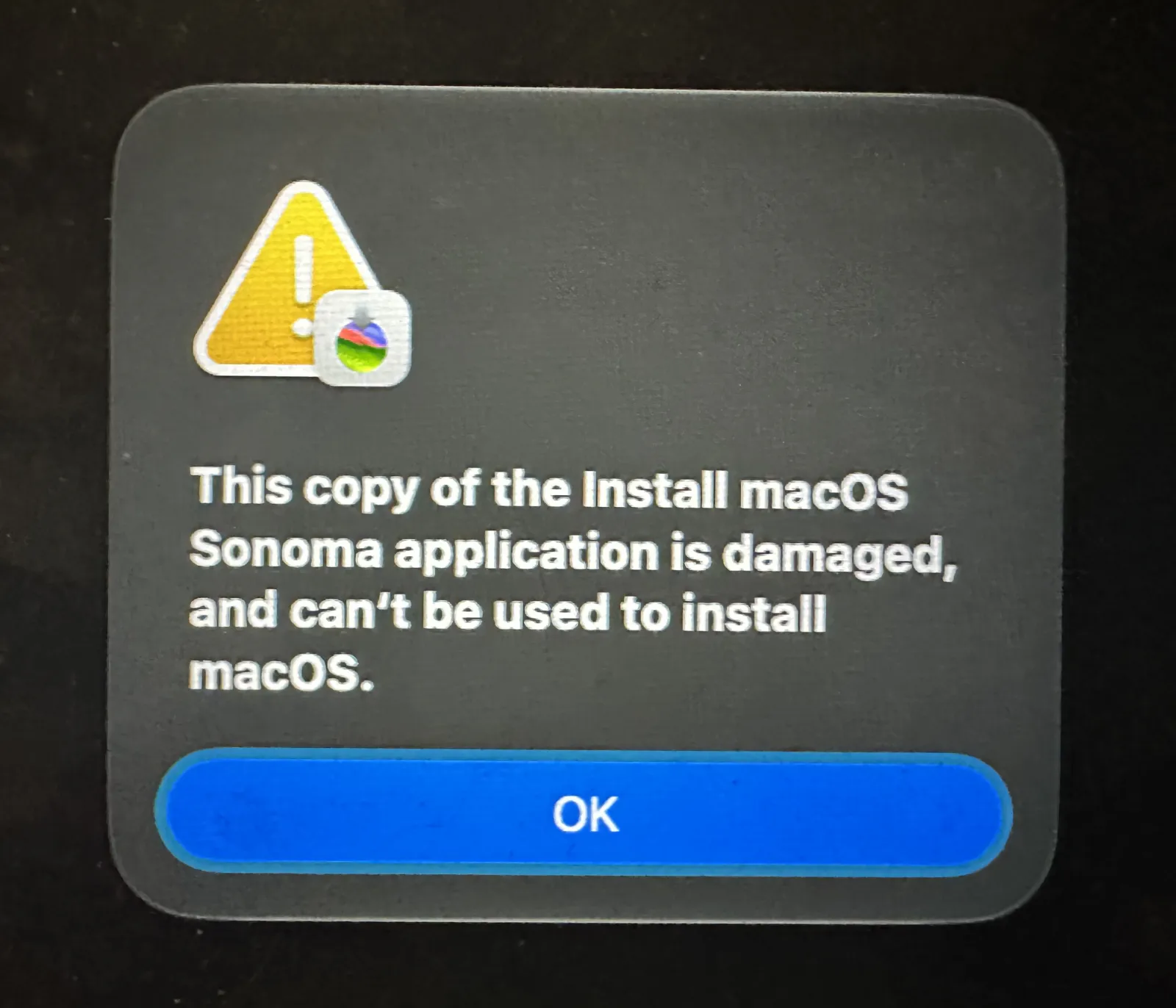
After all that, I was disappointed.
Why macOS 27 says the installer is damaged
I asked Claude for a way to still use the card. This was Fable 5.2, running in Claude Code on the same Mac. It started with the obvious suspect and cleared it: SharedSupport.dmg, 13.65 GB and the bulk of the installer, is byte-identical on the card and in /Applications.
cmp "/Applications/Install macOS Sonoma.app/Contents/SharedSupport/SharedSupport.dmg" \
    "/Volumes/Install macOS Sonoma/Install macOS Sonoma.app/Contents/SharedSupport/SharedSupport.dmg"
The other easy explanations went the same way:
- Compatibility. The M1 Pro shipped with macOS Monterey, so it can run Sonoma.
- An old installer. Build 14.8.9 was downloaded the same day and the Mac’s clock was right. I didn’t inspect the certificate itself.
- Running the installer from macOS 27. Apple blocks installers for older major versions there, and
startosinstallin 14.8.9 has no--volumeoption to aim it at another volume. - Launching it from Terminal in Recovery. In 2025 a commenter on Howard Oakley’s blog got past a different error (702) that way. Under 27.2 it ended in an error, and I didn’t record the text.
What was left is how these Macs start an installer at all. An Apple silicon Mac doesn’t boot from a bootable installer. Holding the power button loads recoveryOS, and recoveryOS runs the installer from your drive. Which recoveryOS you get depends on the default startup system, because each system has its own paired copy. With macOS 27.2 as the default, the older installer is launched by recoveryOS 27.2, and that is the piece that rejects it.
Oakley had tested exactly this two weeks earlier, on 6 November 2026. Under macOS 27.2 the latest Tahoe and Sequoia installers were rejected as damaged, and only the 27.2 installer ran. He thinks 27.2 is the most likely cause, and he reported a similar failure in Sequoia 15.3.2 in March 2025. He didn’t test Sonoma. That my failure is the same problem is my conclusion from the identical symptom.
Claude had one known workaround to try, and said that if it failed, Sonoma wasn’t going onto this Mac until Apple fixed the bug.
It failed, and that answer didn’t suit me. I kept writing back and forth with Claude, looking for something non-standard, until it proposed one.
Borrowing an older recoveryOS from the Asahi Linux installer
The idea sounded like sorcery: run the Asahi Linux installer and stop before any Linux is installed.
Normally an older recoveryOS only arrives with an older macOS, which is exactly what won’t install. The Asahi installer gets around this as a side effect. To let a Mac boot another operating system, it first creates a stub: a small container that the Mac treats as a macOS install. It holds a bootloader, firmware, a kernel and a genuine recoveryOS, all taken from Apple’s own restore image. For my M1 Pro that image is macOS 13.5. The installer then makes the stub the default startup volume, and from then on holding the power button loads recoveryOS 13.5. To that system Sonoma is a newer macOS, which is the ordinary direction for an install.
It also meant resizing the system disk of my only Mac without a full backup. I felt the spirit of adventure I knew from childhood, when you try something risky with a computer for the first time and don’t know how it will end: with even bigger problems and a reinstalled OS, or with a fix that feels like a victory.
It worked on the first try.
The proof came afterwards. fsck_apfs reports that Sonoma’s system volume was created by APFS version 2142.140.9. That is the APFS version of macOS 13.5, according to Oakley’s list of APFS versions, and macOS 27.2.1 on the same Mac reports 3288.41.1. So the installer ran under the stub’s recoveryOS. And later, with the stub removed and macOS 27 as the default again, the same card produced the same “damaged” message. That is the photo above.
The rest of this page is the instruction, in case you need the same thing.
Before you start
This is the setup it worked on:
| Mac | MacBook Pro 14-inch, M1 Pro (MacBookPro18,3) |
|---|---|
| System | macOS 27.2.1 (26B131), FileVault on |
| Installed | macOS Sonoma 14.8.9 |
| Installer drive | 128 GB microSD card in the built-in card reader |
| Asahi Linux installer | v0.9.2 |
| What I didn’t have | a second computer, a full backup |
- The system disk is resized while macOS is running. Back up first.
- A second Mac is your only safety net. If startup breaks badly enough to need a DFU restore, you need another computer.
- On 14-inch and 16-inch MacBook Pros, use Sonoma 14.2 or later. The Asahi installer warns that older Sonoma versions may not start on these displays.
- Use the current Asahi installer. macOS 27 changed the startup picker, and v0.9.2 lists a fix for it.
- Space. The stub step needs about 12 GB free, and Sonoma took about 55 GB.
- Drive size. Oakley recommends at least 32 GB.
How to install the older macOS, step by step
Everything in this section was done on my Mac on 19 and 20 November 2026. I ran the install steps myself. Claude prepared and checked them, and ran two things directly: the backup copy and, afterwards, the stub removal.
1. Make the bootable installer
softwareupdate --fetch-full-installer --full-installer-version 14.8.9sudo "/Applications/Install macOS Sonoma.app/Contents/Resources/createinstallmedia" --volume /Volumes/YOUR_DRIVE_NAMEThe drive must be formatted as Mac OS Extended (Journaled) with a GUID partition map. The second command erases it completely.
2. Back up what matters
For example, one archive of a folder, written to the free space left on the card:
cd ~ && tar -cf "/Volumes/Install macOS Sonoma/Backup.tar" YOUR_FOLDERCheck that the archive is complete before you go on. We compared the number of files in it with the number in the folder.
3. Add a volume for Sonoma
In Disk Utility, add an APFS volume named “Sonoma” to the main container, with the “+” button above the volume list. It needs no size, because volumes share the container’s free space.
4. Create the stub with the Asahi installer
curl https://alx.sh | shThese are the answers I gave to its prompts:
| Prompt | Answer |
|---|---|
| sudo password | yours |
Choose what to do | r (resize an existing partition) |
New size | 97.5%, then y |
Choose what to do | f (install into free space) |
Choose an OS to install | 5, “UEFI environment only (m1n1 + U-Boot + ESP)” |
OS name | Enter |
| Admin user and password | yours |
| After the instructions | Enter, and the Mac shuts down |
Nothing on the disk changes until you confirm the resize. If the menu looks different from this table, stop there.
The installer refuses to free less than 10 GB. On a 500 GB disk, 97.5% frees about 12 GB: the stub takes 2.5 GB, its EFI partition 0.5 GB, and the rest stays unallocated.
5. Start the Sonoma installer
- Wait 25 seconds after the Mac shuts down.
- Press the power button once and keep holding it until “Loading startup options…” appears.
- Choose “Install macOS Sonoma”. Leave the new “UEFI boot” entry alone.
- If it asks which volume to recover, choose “Macintosh HD” and enter your password.
- In the installer, pick the “Sonoma” volume and set your own user as its owner.
You can skip Asahi’s second stage, the one that enables booting Linux. The stub is only here to carry recoveryOS.
If something goes wrong, hold the power button for 10 seconds to shut down, hold it again and choose “Macintosh HD”. That takes you back to macOS 27. A short press of the power button while the stub is the default sends the Mac into a restart loop, and the cure is the same.
What it looked like afterwards
The installer opened without the error, Sonoma installed, and it boots. From macOS 27.2.1 the disk looked like this:
/dev/disk0 (internal, physical):
   1:   Apple_APFS_ISC            524.3 MB   disk0s1
   2:   Apple_APFS  (main)        482.0 GB   disk0s2   ← Macintosh HD + Sonoma
   3:   Apple_APFS  (stub)          2.5 GB   disk0s3   ← "UEFI boot"
   4:   EFI  "EFI - UEFI"         500.2 MB   disk0s4
        (free space)                9.4 GB
   5:   Apple_APFS_Recovery         5.4 GB   disk0s5
How to remove the stub and Sonoma later
The numbers in disk0sN and diskN change between restarts. Before every command below, match them by name and size:
diskutil list internal Delete partitions with diskutil, and stay out of Disk Utility for this: the Asahi docs warn that it handles these layouts badly. Leave Apple_APFS_ISC and Apple_APFS_Recovery alone, because the Mac can’t recover itself without them.
The stub (gives back 12 GB)
Done on my Mac on 20 November 2026. The three commands ran without sudo, the main container went back to its original 494.4 GB, and macOS 27 started normally afterwards.
Sonoma has its own recoveryOS, so the stub was only needed to start the installer. Keep it if you plan to install another older macOS before Apple fixes this.
- Start macOS 27. In System Settings → General → Startup Disk, choose a real system as the default.
- In the
diskutil list internaloutput, find the 2.5 GB APFS container with the “UEFI boot” volumes and the 500 MB partition named “EFI - UEFI”. On my Mac they weredisk0s3anddisk0s4. - Delete the stub container:
diskutil apfs deleteContainer disk0s3 - Delete the EFI partition:
diskutil eraseVolume free free disk0s4 - Give the space back to the main container:
diskutil apfs resizeContainer disk0s2 0 - Check that the main container is back to its original size, that there is no
(free space)line, and thatApple_APFS_Recoveryis still there.
Terminal can freeze for a few minutes during the resize.
Sonoma (gives back about 55 GB)
I haven’t run this part yet. The command comes from diskutil’s own usage text.
- Start macOS 27 and make “Macintosh HD” the startup disk. Restart with a normal press and confirm that it is the system that starts.
- Find Sonoma’s volume group:
diskutil apfs listVolumeGroupsYou want the group whose volumes are named “Sonoma” and “Sonoma - Data”. Copy its UUID from the
Volume Groupline. - Delete the group:
sudo diskutil apfs deleteVolumeGroup SONOMA_GROUP_UUIDAccording to the usage text, this removes both volumes with their Preboot, Recovery and xART entries.
- Check that the Sonoma volumes are gone and that Preboot has no folder with that UUID:
diskutil apfs list | grep -i sonomals /System/Volumes/Preboot
Check the UUID twice before step 3. The neighbouring group in the same container is “Macintosh HD”, with all your data.
The card stays a working Sonoma installer. Delete the backup archive from it once you’re sure your data is intact.
Open ends
Things I haven’t tested, and questions I’d ask in your place:
- Is my installer or drive really damaged? Probably not, if
createinstallmediafinished without errors. Thecmpcommand above checks it. - Does this work for Sequoia or Tahoe installers? I haven’t tried. Oakley saw the same rejection for both, and the stub replaces the recoveryOS that does the rejecting, so I’d expect it to help. That is an expectation and I have no test behind it.
- Will it work on another Mac? I only know about the M1 Pro. The Asahi installer chooses the stub’s version by model: in its source, M1 and M2 Macs get 12.3, 12.3.1 or 13.5, and M3 Macs get 14.8.3. Check that the installer supports your Mac before you resize anything. No Mac can run a macOS older than the one it shipped with.
- Can I use this to downgrade from macOS 27? It puts an older macOS next to macOS 27 and leaves macOS 27 in place. I haven’t tested erasing macOS 27 afterwards. The other route I know of is a DFU restore with an older restore image from a second Mac, which erases the whole disk.
- Starting Sonoma from startup options once the stub is gone and macOS 27 is the default again. Apple describes switching between installed versions as ordinary use, so I expect it to work.
- A separate container for the older system. Sonoma and macOS 27 share one APFS container here.
fsck_apfsunder macOS 27 found the container OK and reported minor warnings on both data volumes. A separate container would be the more cautious layout. - Whether a later macOS 27 update fixes the bug. Oakley hopes for a fix in 27.3. If one comes, none of this is needed, and I’ll say so at the top of the page.
What all this was for
SpatialTap plays apps that don’t use Spatial Audio on their own, Spotify, Chrome, Firefox and VLC among them, through Apple’s own Spatial Audio, Fixed or Head Tracked, on AirPods and Beats. After this detour it has been tested on Sonoma as well as on macOS 26 and 27, and it runs on macOS 14.2 and later.
7 days free, no account, no card
Sources
- Install an older version of macOS on an Apple silicon Mac Howard Oakley, The Eclectic Light Company, eclecticlight.co, 6 November 2026. The macOS 27.2 problem.
- Last Week on My Mac: You don’t really want to install that Howard Oakley, eclecticlight.co, 8 November 2026.
- macOS 15.3.2 Sequoia won’t install older macOS on Apple silicon Macs Howard Oakley, eclecticlight.co, 28 March 2025. The earlier, similar problem and the Terminal workaround in its comments.
- APFS versions, updates and compatibility Howard Oakley, eclecticlight.co, 2 September 2023. APFS 2142.140.9 is macOS 13.5.
- Open OS Platform Interoperability Asahi Linux, asahilinux.org, What the stub is and why it carries recoveryOS.
- Partitioning Cheatsheet Asahi Linux, asahilinux.org, Deleting the partitions.
- asahi-installer github.com,
src/main.pyandsrc/stub.py. Stub versions by model, the macOS 27 fix, the installer’s prompts. - Create a bootable installer for macOS Apple, support.apple.com
- Use more than one version of macOS on Mac Apple, support.apple.com
- If an error occurred while updating or installing macOS Apple, support.apple.com